Networking Management
Networking management keeps your virtual firewall instance connected securely and ensures smooth traffic flow. It involves expanding connectivity when needed, assigning extra addresses for flexibility, and removing unused interfaces to keep configurations clean.
This section comprises of the following sub-sections:
Adding and Detaching a Network
A network connects your virtual firewall to other resources and defines secure traffic flow through IP addressing and subnet configuration. Add a network to extend connectivity or assign secondary IPs, and detach unused networks to simplify management and maintain a secure configuration.
To add and detach a network, follow these steps:
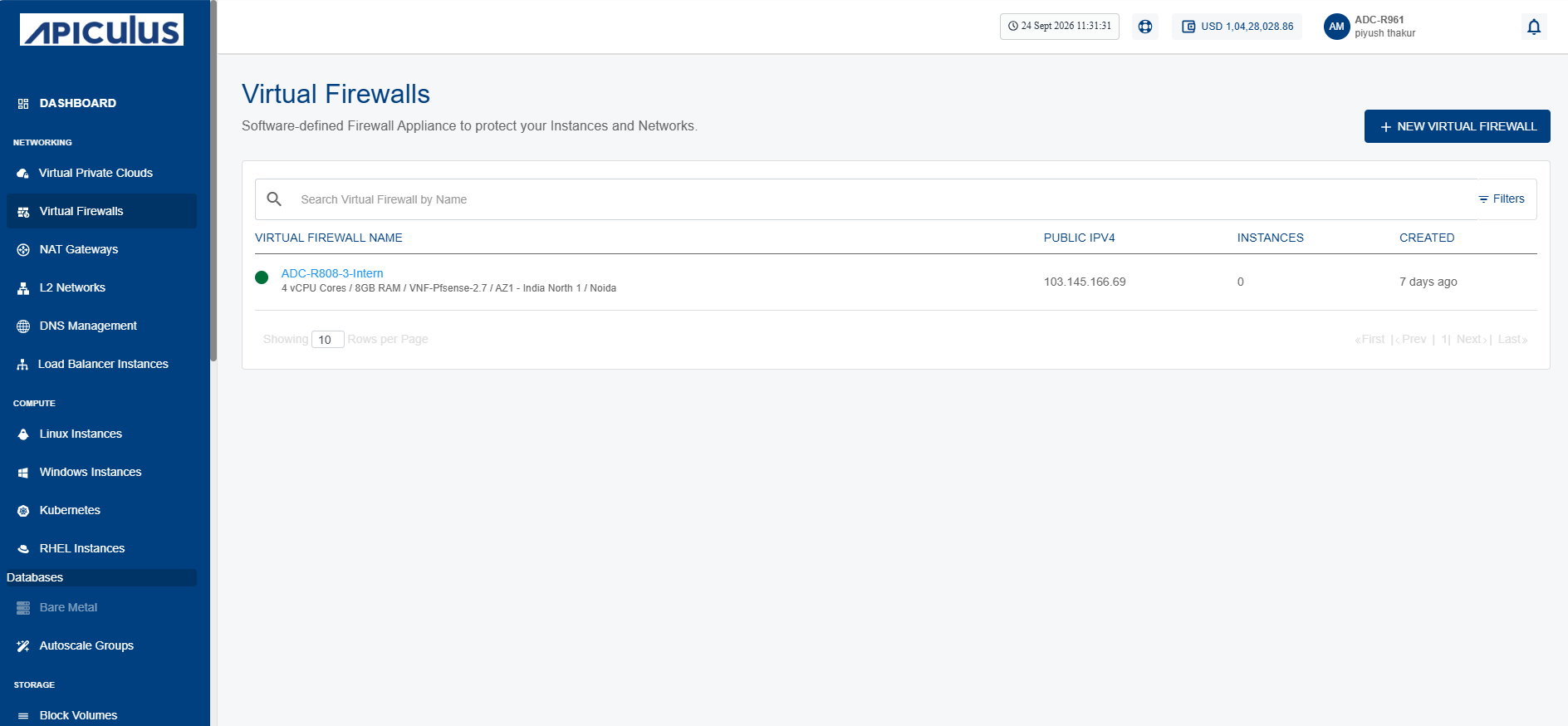
- Navigate to Networking > Virtual Firewalls. The following screen appears:
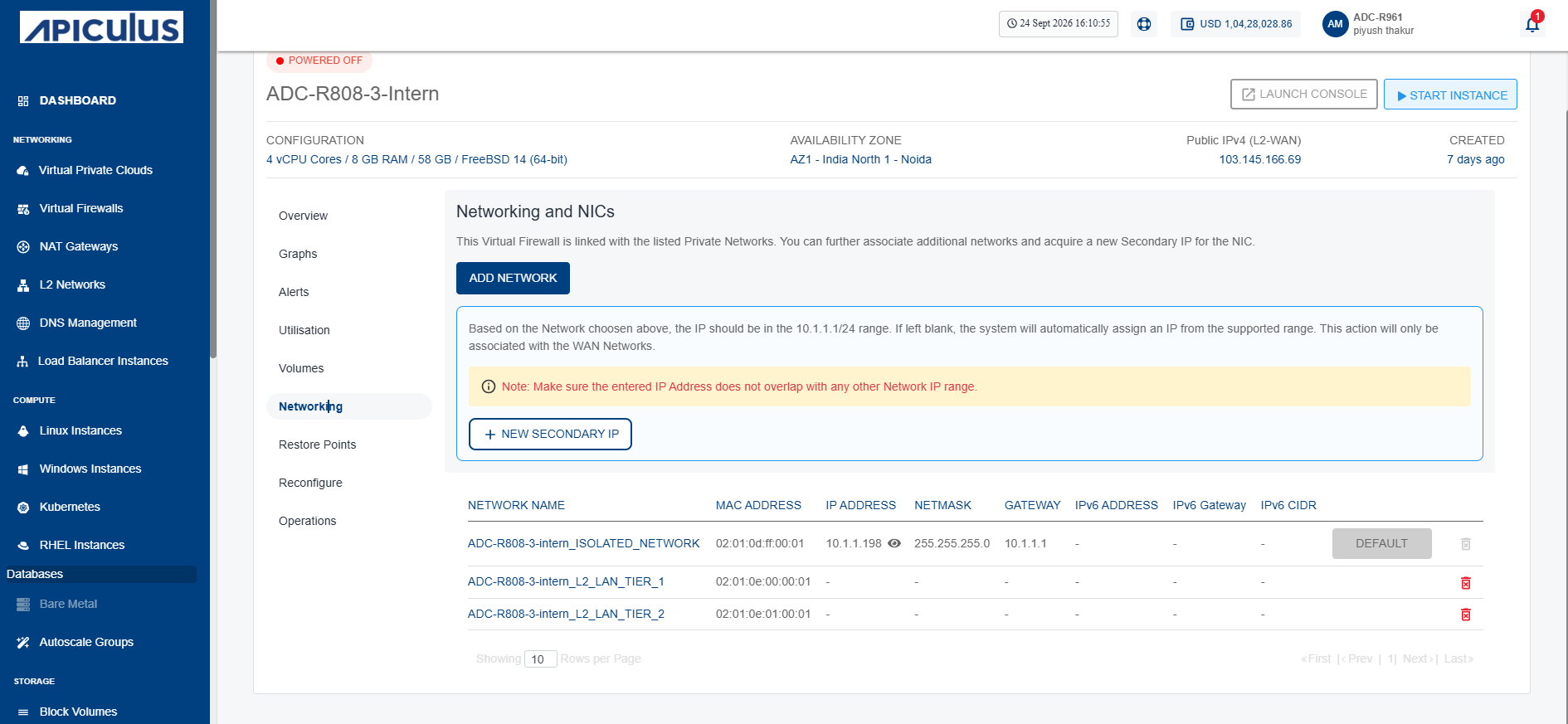
- Click on your created virtual firewall name from the list and click Networking. The following screen appears:
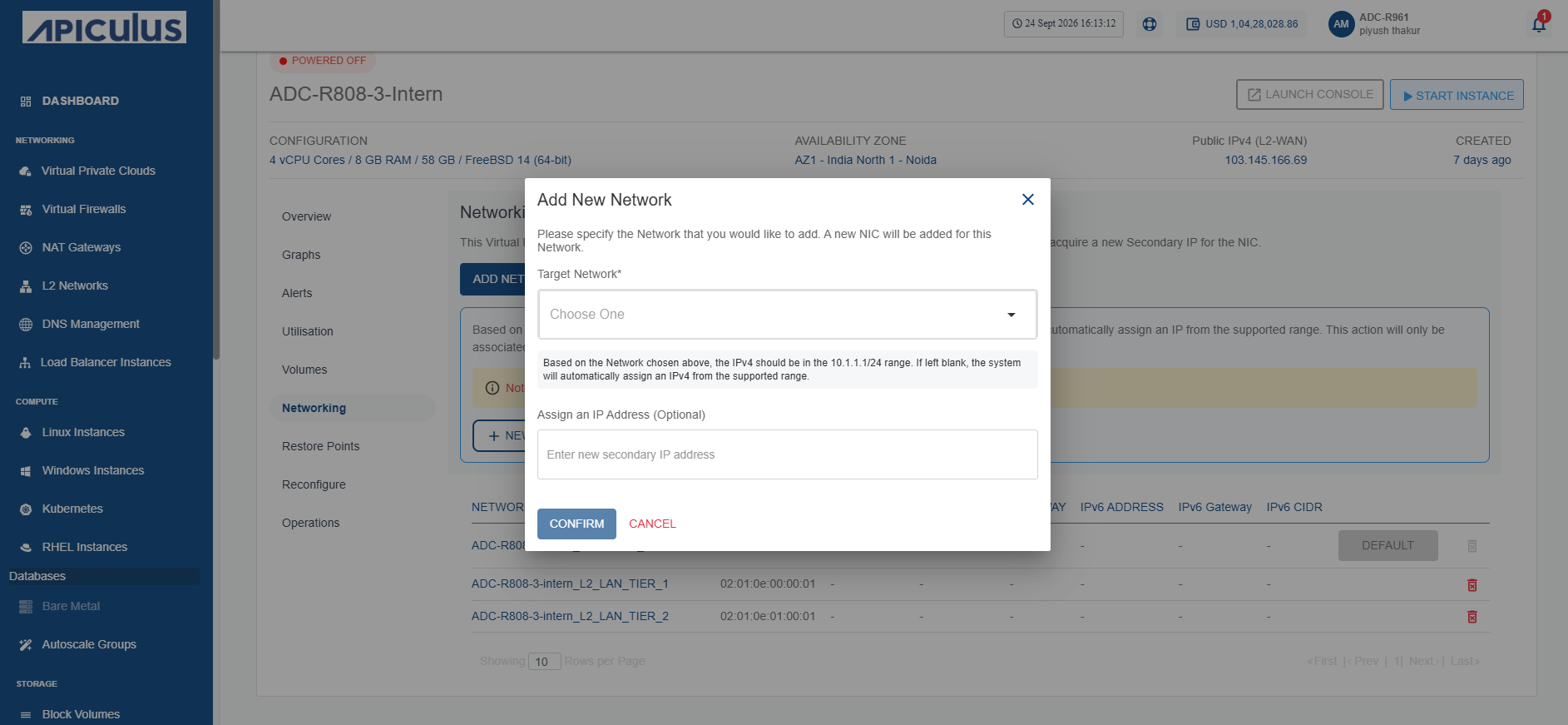
- Click the Add Network button. The following screen appears where you can provide the required details:
- Click the Confirm button. The following screen appears:
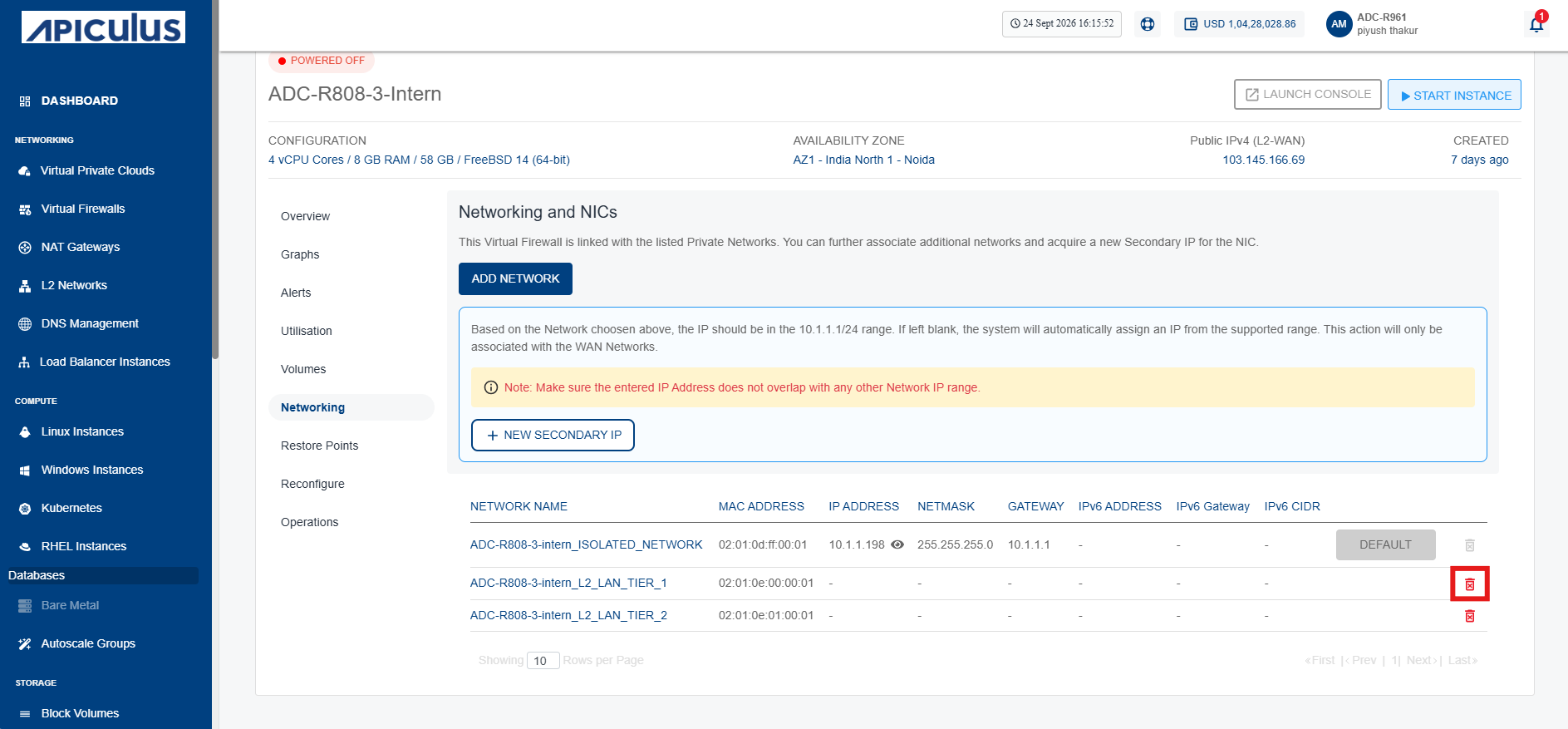
- Click the Detach NIC icon (highlighted in red). The following screen appears:
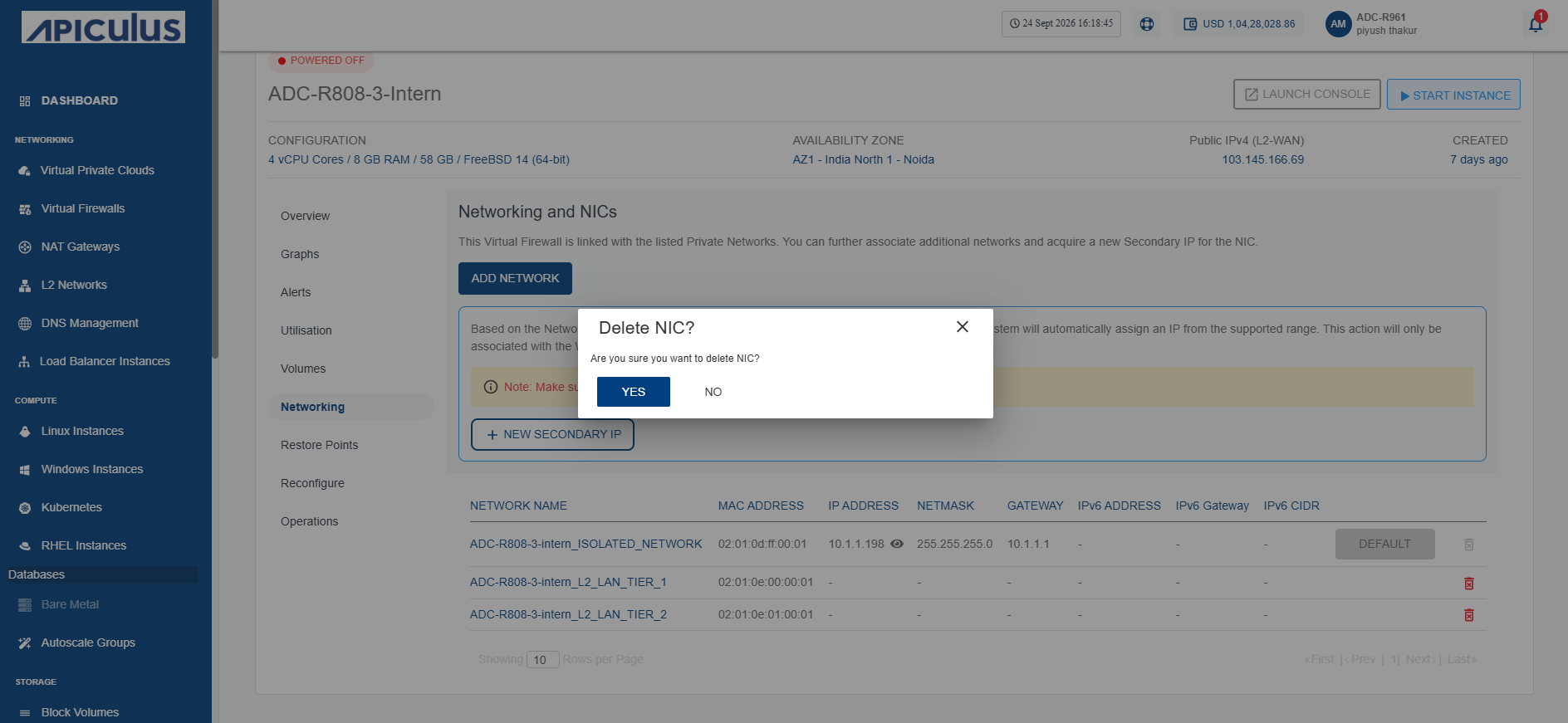
- Click the Yes button.
Adding a Secondary IP
A secondary IP is an additional address assigned to your virtual firewall instance, allowing it to handle multiple connections or services on the same network interface. Adding a secondary IP is important because it helps you isolate workloads, support different applications, and improve flexibility in managing traffic.
To add a secondary IP, follow these steps:
- Navigate to Networking > Virtual Firewalls. The following screen appears:
- Click on your created virtual firewall name from the list and click Networking. The following screen appears:
- Click the New Secondary IP button. The following screen appears where you can provide the required details:
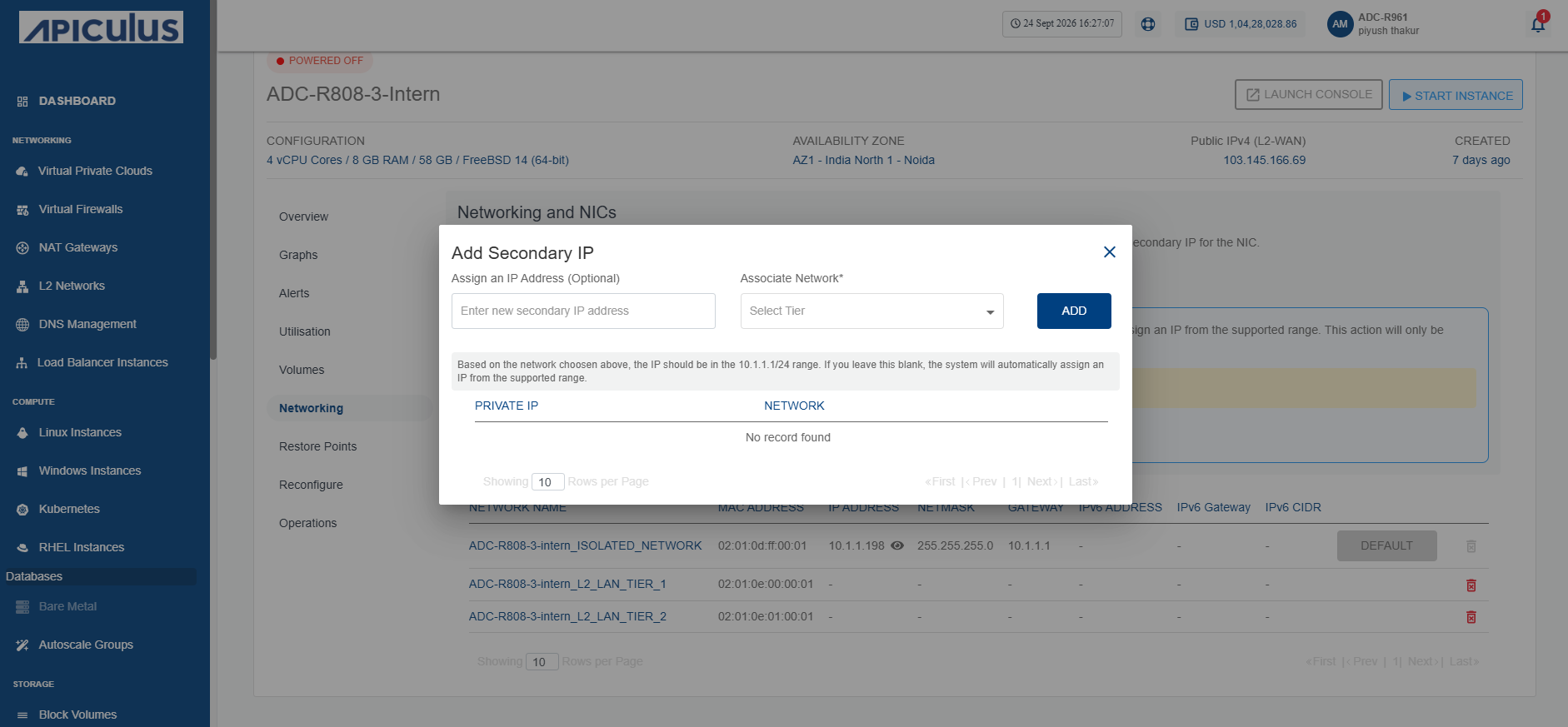
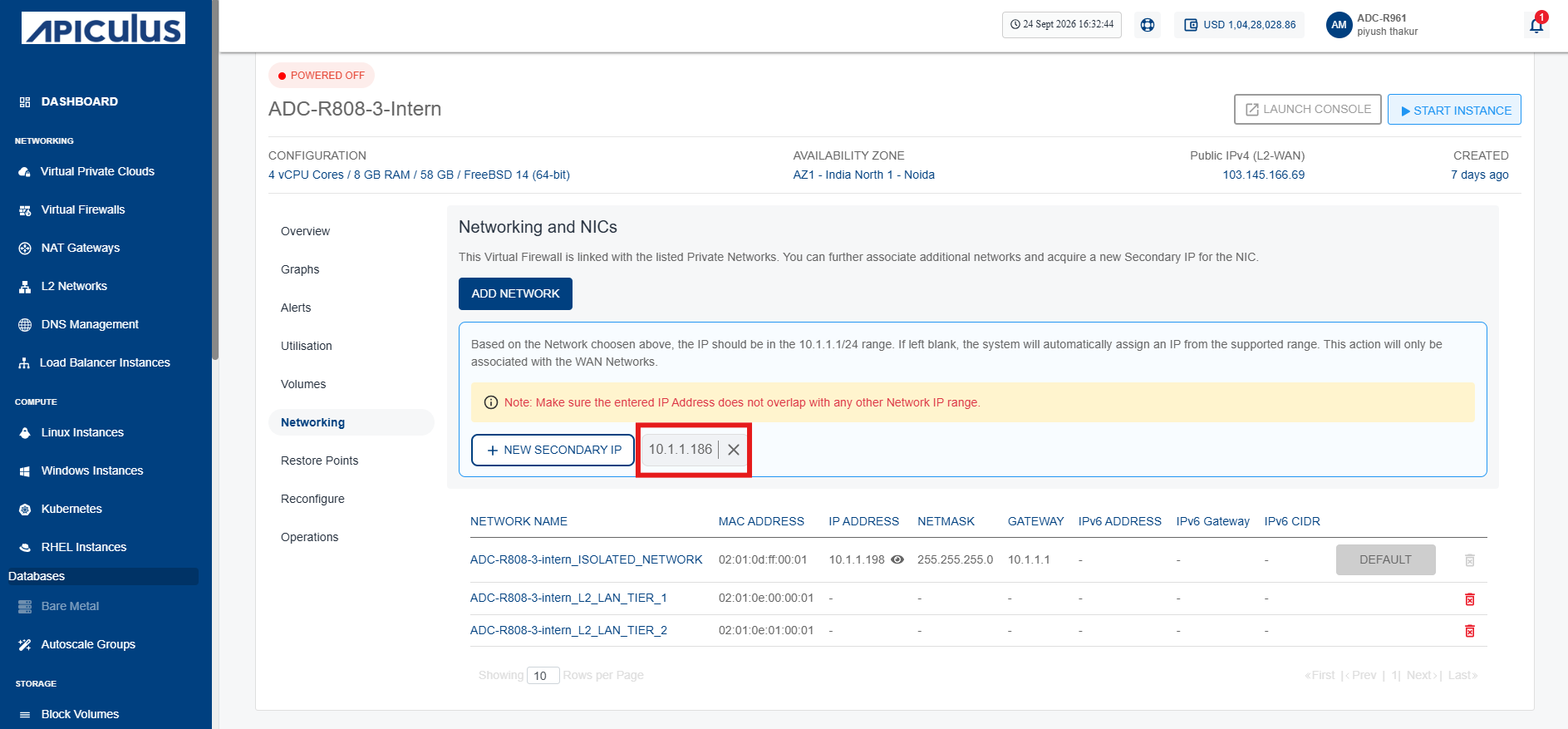
- Click the Add button. The secondary IP is added (highlighted in red).