Reconfiguring Virtual Firewall
Reconfigure a virtual firewall to replace its current firewall appliance with a different one that better meets your operational and security requirements. This operation updates the firewall configuration by applying the selected appliance.
To reconfigure the existing virtual firewall, follow these steps:
- Navigate to Networking > Virtual Firewalls. The following screen appears:
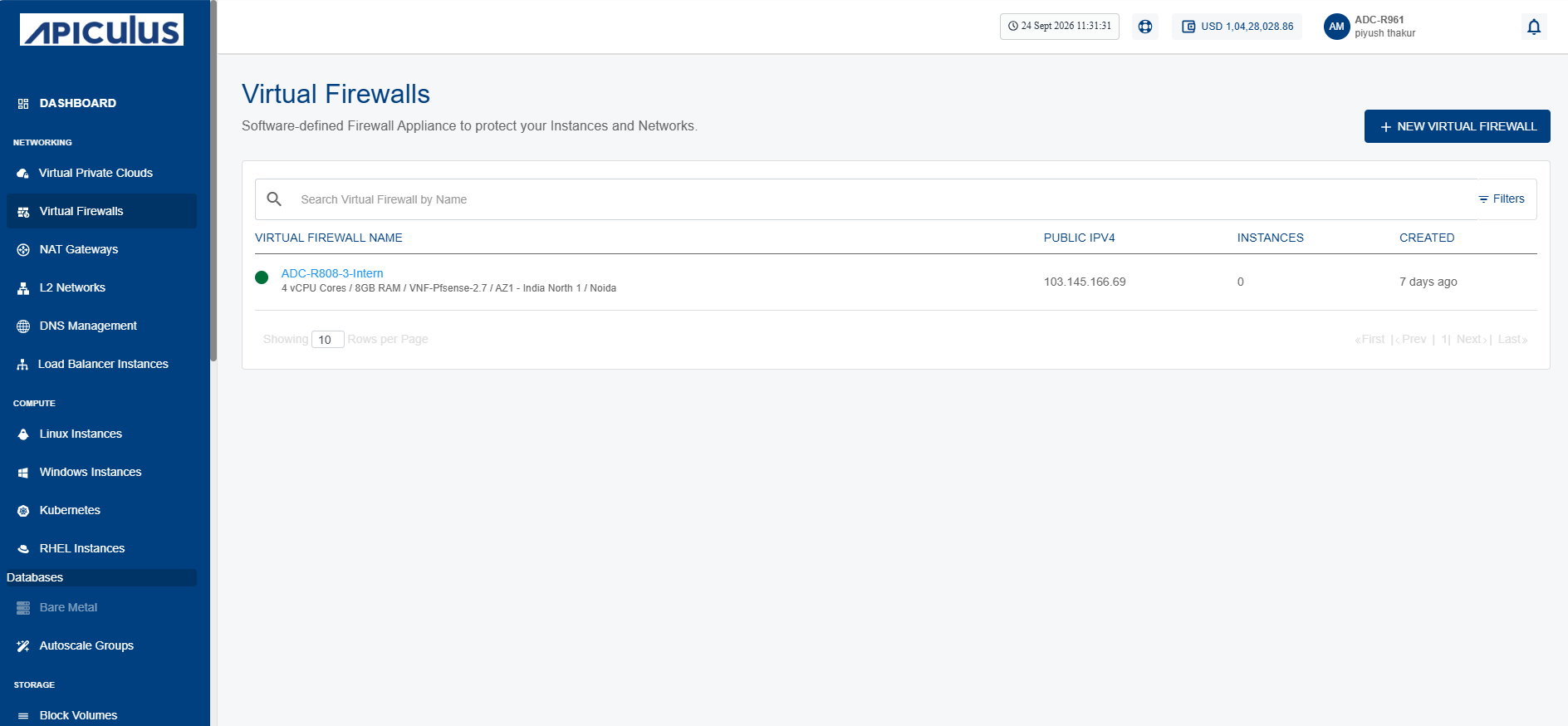
- Click on your created virtual firewall name from the list.
- Click Reconfigure. The following screen appears:
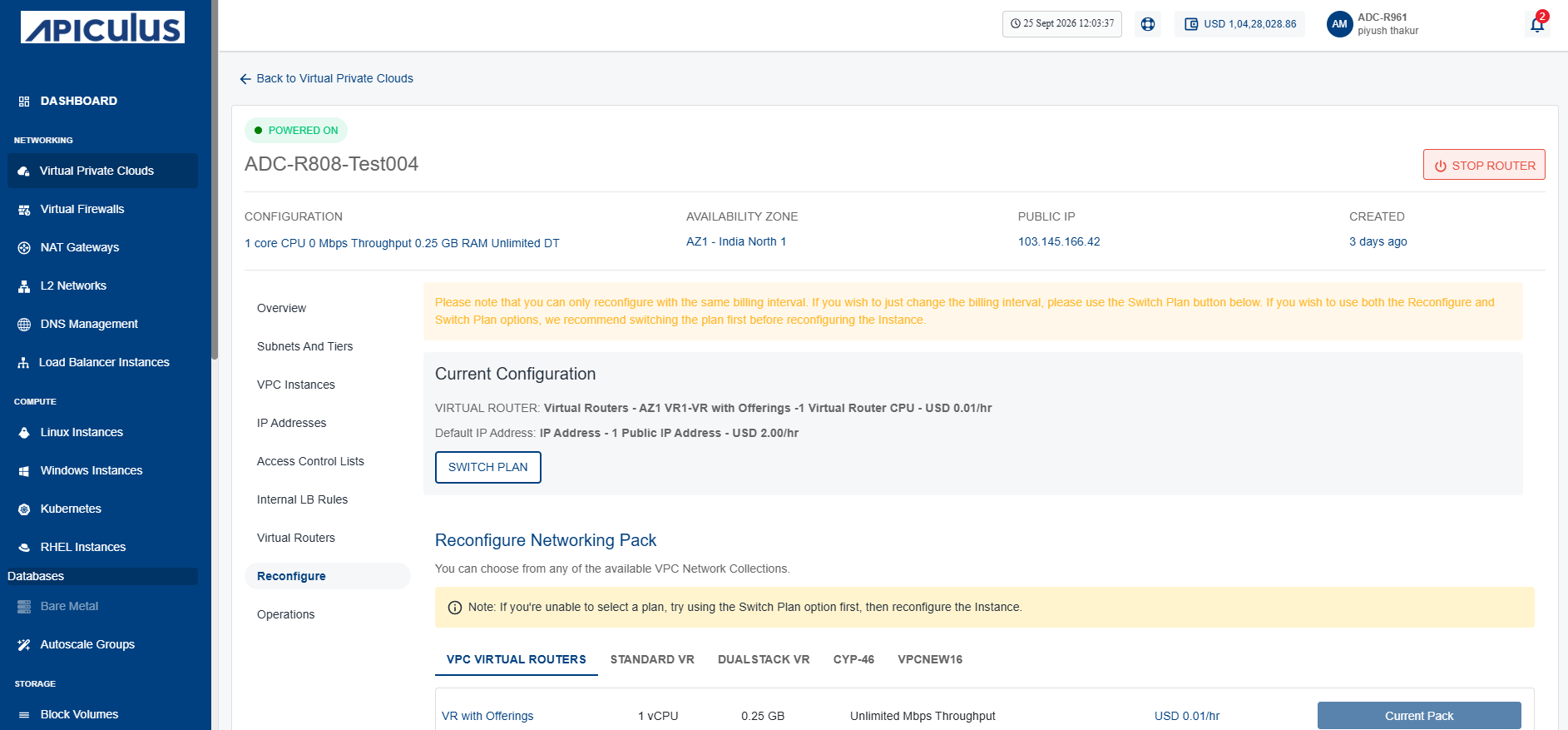
- Click the Stop Instance button. The following screen appears:
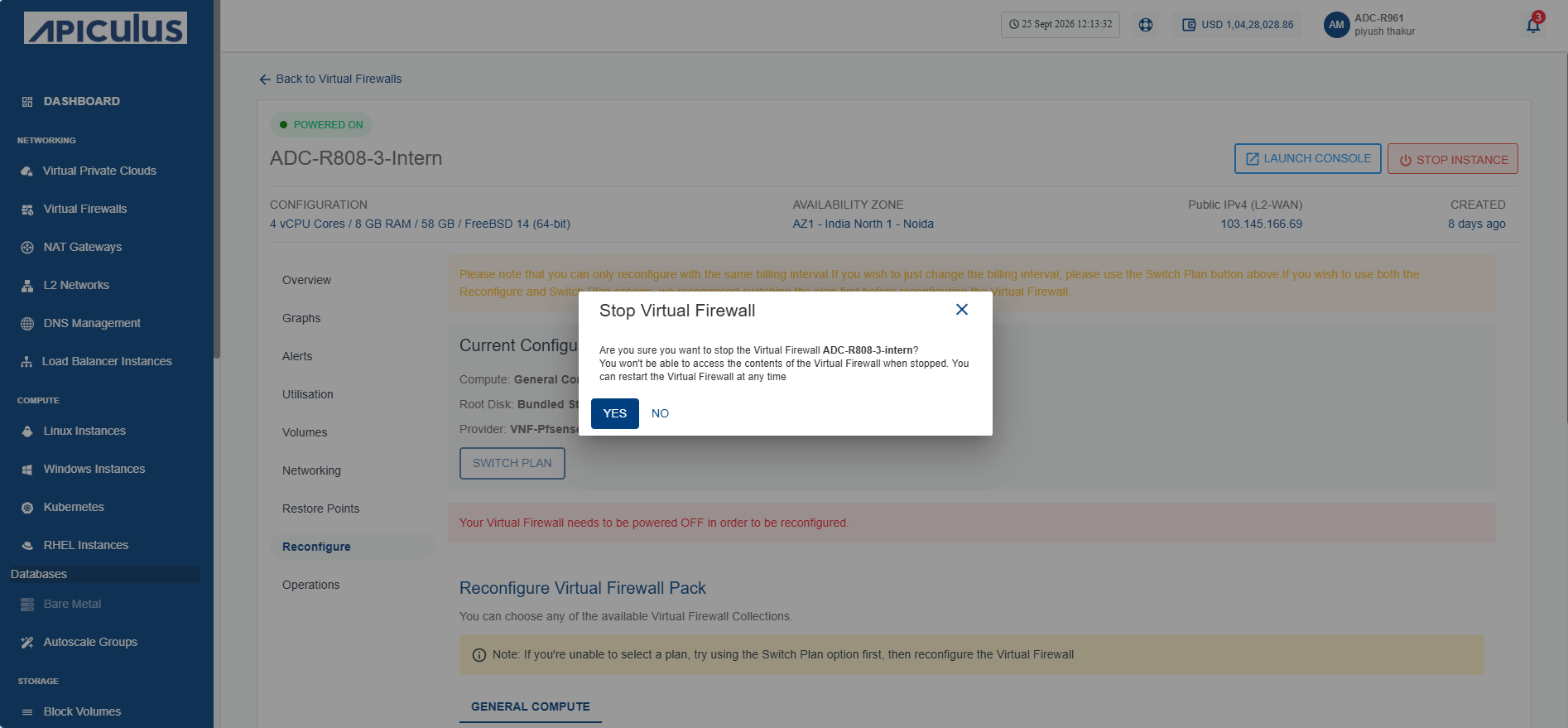
- Click the Yes button. The following screen appears:
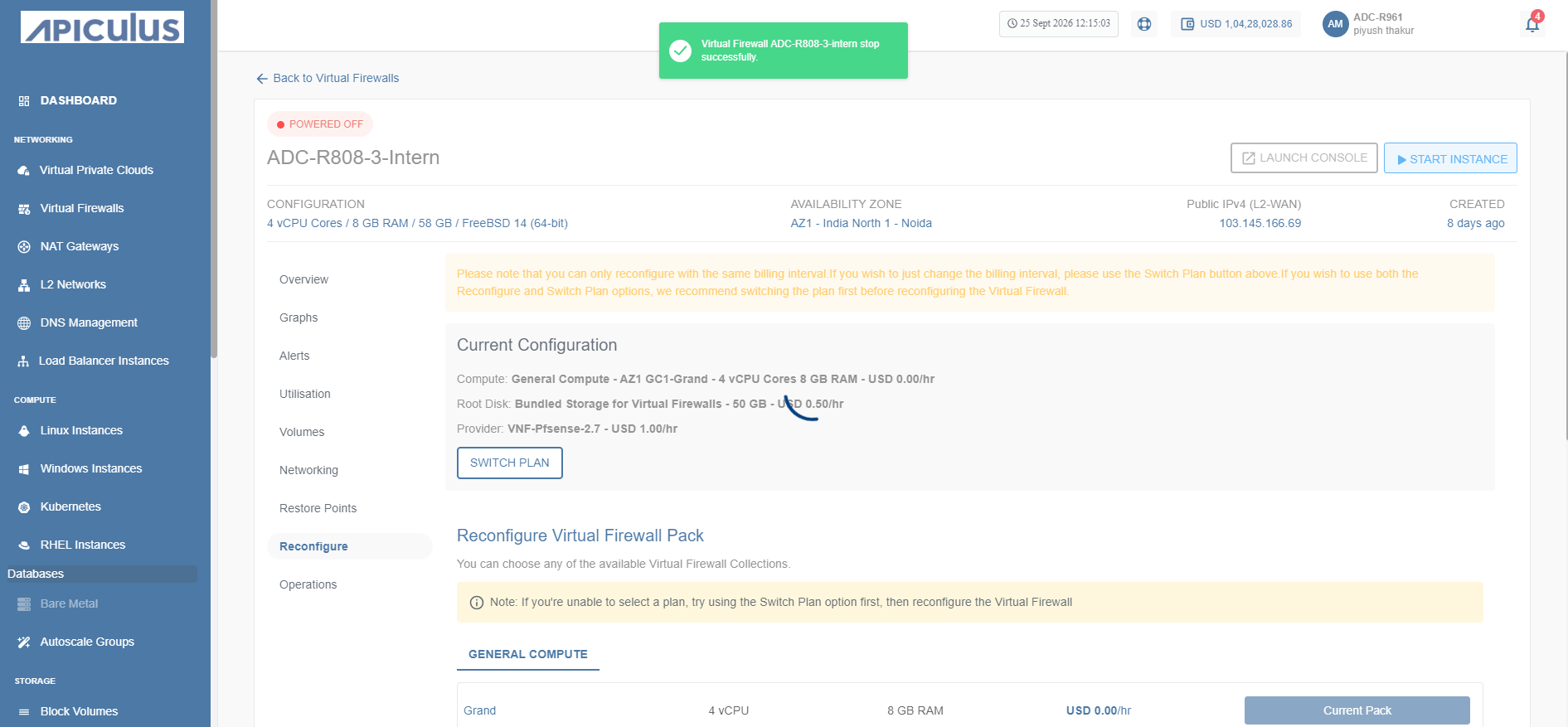
- Select a Firewall Appliance from the list, and click the Reconfigure Virtual Firewall Pack button. The following screen appears:
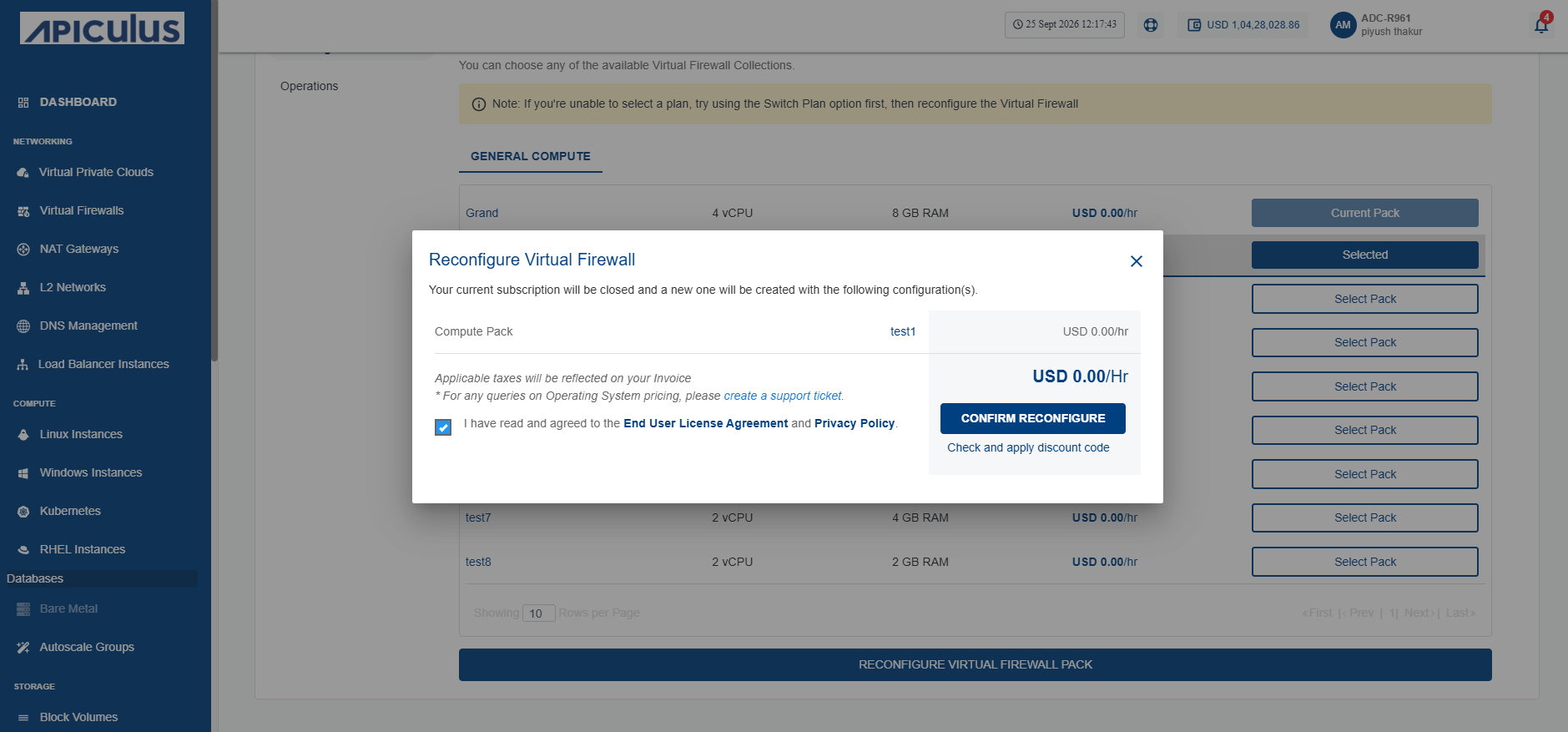
- Select I have read and agreed to the Yntraa Cloud Terms and Conditions and Privacy policy option, and click the Confirm Reconfigure button.