Managing VPC Operations
This section help you manage your VPC efficiently after it is created. You can perform key actions to monitor, update, and maintain your VPC, ensuring it continues to support your workload and network requirements effectively.
This section comprises of the following sub-sections:
Restarting a VPC
Restart a VPC to refresh its network services and apply recent configuration changes. Use this option to restore normal network operations or resolve temporary connectivity issues.
To restart a VPC, follow these steps:
- Navigate to Networking > Virtual Private Clouds. The following screen appears:
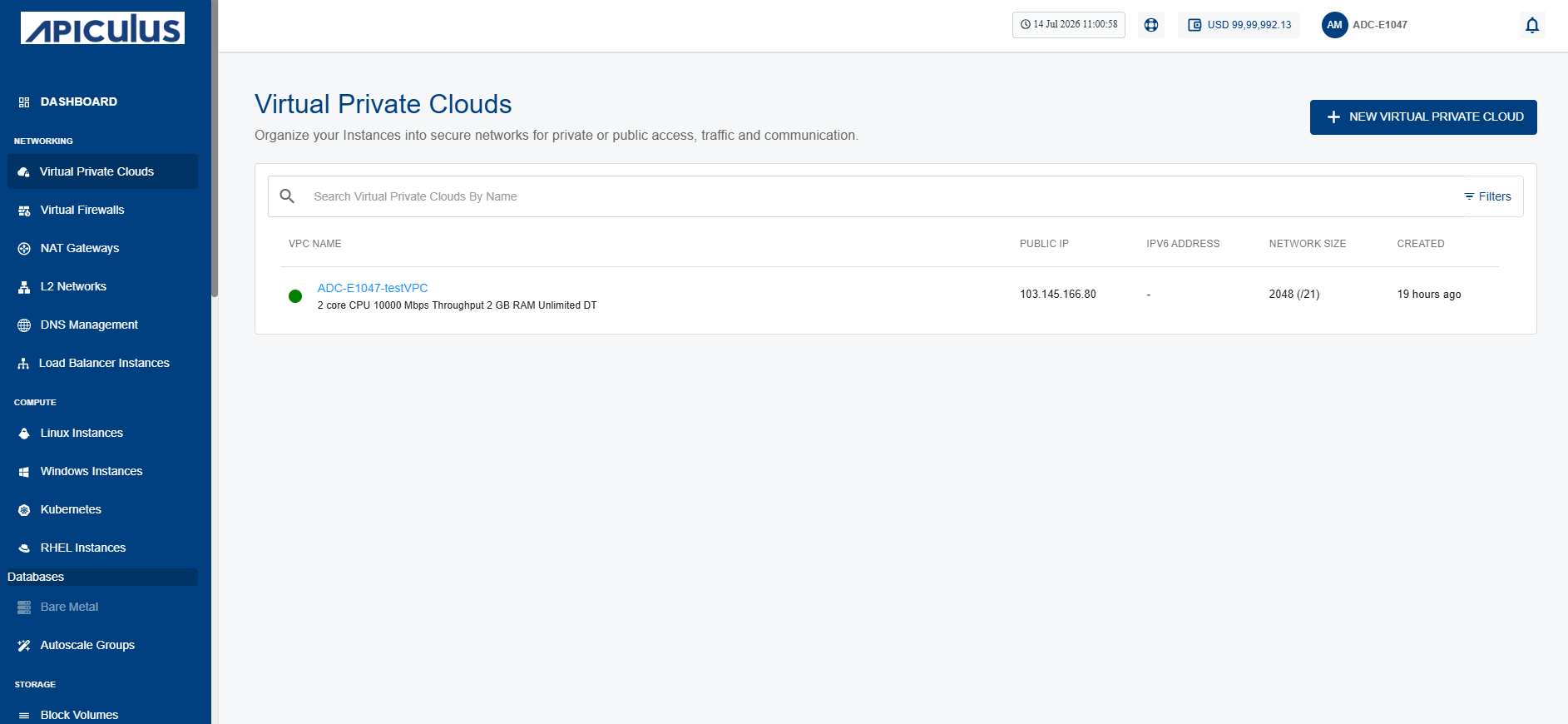
- Click on your created VPC name from the list.
- Click Operations. The following screen appears:
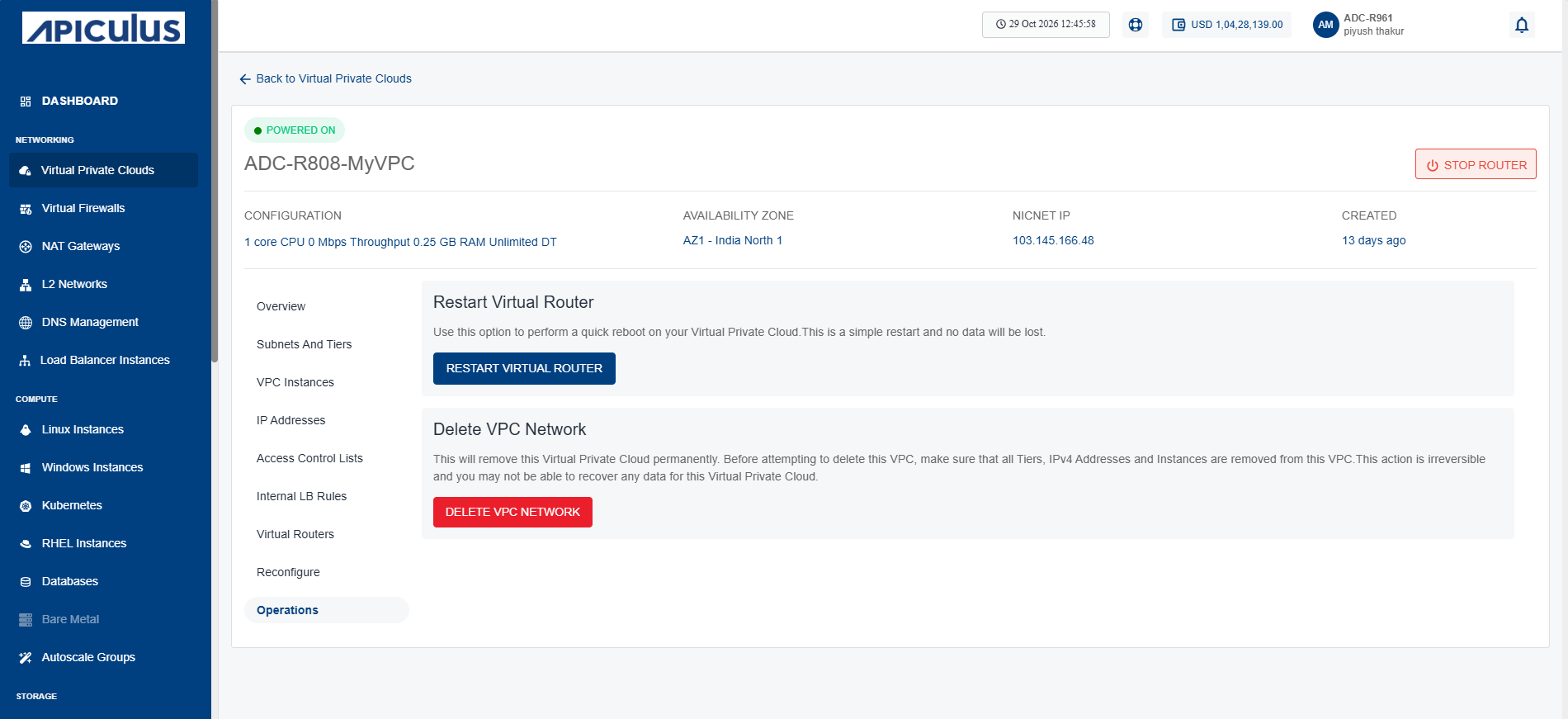
- Click the Restart Virtual Router button.
Deleting a VPC
When you no longer need a VPC, delete it to remove unused network resources and keep your cloud environment organised and easy to manage.
Before attempting to delete this VPC, ensure that all Tiers, IPv4 Addresses, and instances are removed from this VPC. This action is irreversible, and you may not be able to recover any data for this VPC.
To delete a VPC, follow these steps:
- Navigate to Networking > Virtual Private Clouds. The following screen appears:
- Click on your created VPC name from the list.
- Click Operations. The following screen appears:
- Click the Delete VPC Network button. The following screen appears, where you can choose to delete the VPC instantly or schedule it to be deleted at a later stage:
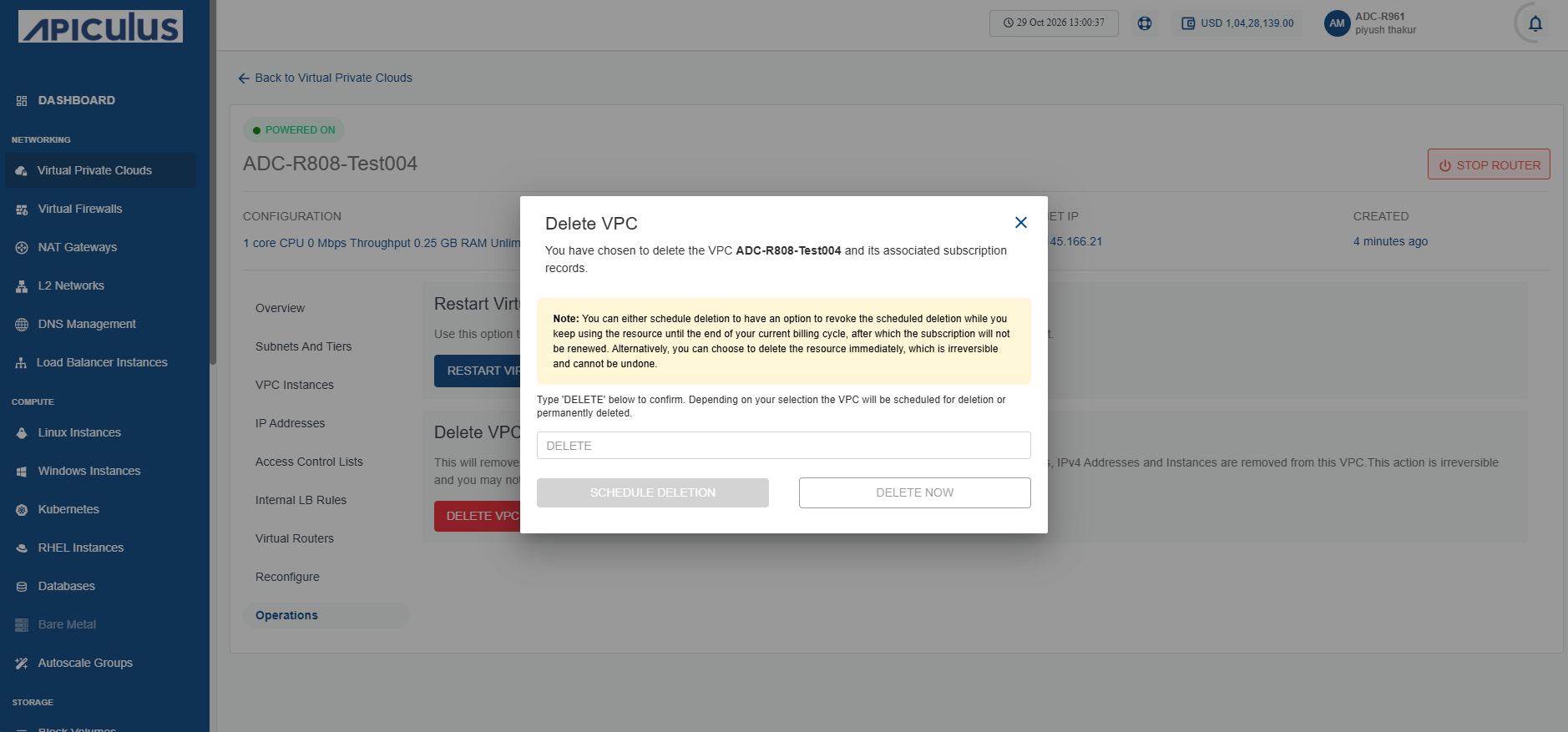
- To delete the VPC instantly, enter DELETE and click the Delete Now button. The VPC is deleted.
- To schedule the VPC to be deleted at a later stage, enter DELETE and click the Schedule Deletion button.